
BoxDrawing
Sublime Text Package enabling users to draw lines and boxes with arrow-key combinations
Details
Installs
- Total 66
- Win 25
- Mac 19
- Linux 22
| Oct 21 | Oct 20 | Oct 19 | Oct 18 | Oct 17 | Oct 16 | Oct 15 | Oct 14 | Oct 13 | Oct 12 | Oct 11 | Oct 10 | Oct 9 | Oct 8 | Oct 7 | Oct 6 | Oct 5 | Oct 4 | Oct 3 | Oct 2 | Oct 1 | Sep 30 | Sep 29 | Sep 28 | Sep 27 | Sep 26 | Sep 25 | Sep 24 | Sep 23 | Sep 22 | Sep 21 | Sep 20 | Sep 19 | Sep 18 | Sep 17 | Sep 16 | Sep 15 | Sep 14 | Sep 13 | Sep 12 | Sep 11 | Sep 10 | Sep 9 | Sep 8 | Sep 7 | Sep 6 | |
|---|---|---|---|---|---|---|---|---|---|---|---|---|---|---|---|---|---|---|---|---|---|---|---|---|---|---|---|---|---|---|---|---|---|---|---|---|---|---|---|---|---|---|---|---|---|---|
| Windows | 0 | 0 | 0 | 0 | 0 | 0 | 0 | 0 | 0 | 0 | 0 | 0 | 0 | 0 | 0 | 0 | 0 | 1 | 0 | 0 | 0 | 0 | 0 | 0 | 0 | 0 | 1 | 0 | 0 | 2 | 0 | 0 | 0 | 0 | 0 | 0 | 0 | 0 | 0 | 0 | 0 | 0 | 0 | 0 | 0 | 1 |
| Mac | 0 | 0 | 0 | 0 | 0 | 0 | 0 | 0 | 0 | 0 | 0 | 0 | 0 | 0 | 0 | 0 | 0 | 0 | 0 | 0 | 0 | 0 | 1 | 0 | 0 | 0 | 1 | 1 | 1 | 0 | 0 | 0 | 3 | 0 | 0 | 1 | 0 | 0 | 0 | 0 | 0 | 0 | 0 | 0 | 0 | 0 |
| Linux | 1 | 1 | 0 | 0 | 0 | 0 | 0 | 1 | 0 | 0 | 0 | 0 | 0 | 1 | 0 | 0 | 0 | 0 | 0 | 0 | 0 | 0 | 0 | 0 | 0 | 0 | 0 | 0 | 1 | 0 | 0 | 0 | 0 | 0 | 0 | 0 | 0 | 0 | 0 | 0 | 0 | 0 | 0 | 0 | 1 | 0 |
Readme
- Source
- raw.githubusercontent.com




BoxDrawing
BoxDrawing is a Sublime Text package enabling the user, with these arrow-key combinations:
- Alt-Arrow (single line)
- Alt-Shift-Arrow (double line), or
- Ctrl-Alt-Shift-Arrow (erase)
to draw lines and boxes like these:
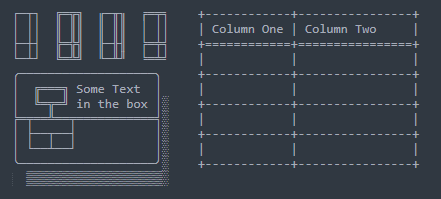
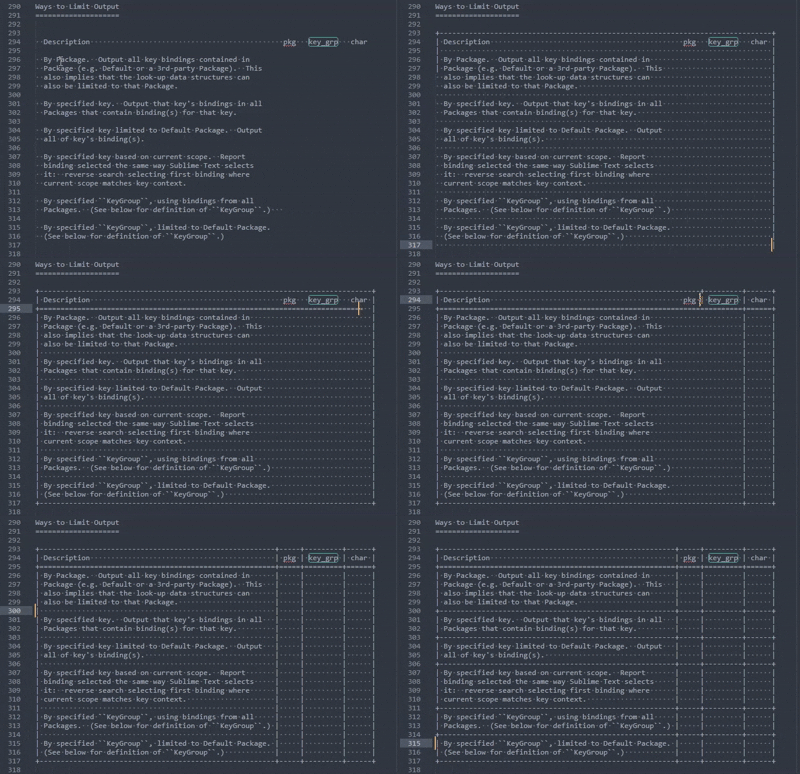
Table of contents
Features
- Draw using intuitive key combinations with arrow keys.
- Arrow-key bindings are temporary, while Box Drawing is turned ON. You turn it OFF again when you are done.
- Intuitively overwrites characters where directed as if always in “overwrite” mode.
- There is no need to add spaces to short lines. The package extends short lines with spaces automatically when needed, enabling you to conveniently draw wherever you direct it.
- Initially uses ASCII or one of the Unicode box-drawing character sets, depending on a user-configurable setting. (See below.)
- Conveniently switch between character sets with one keystroke.
- Box drawing with the ASCII character set is compatible with the requirements of reStructuredText tables. (The ASCII table above is an example.)
- The current state of the BoxDrawing Package can be seen:
- Tools > BoxDrawing > sub-menu items, and
- in the status bar for 4 seconds after each state change.
- Supports these character sets:
- ASCII
- Unicode [Square Corners]
- Unicode [Round Corners]
- Unicode [2 Dashes]
- Unicode [3 Dashes]
- Unicode [4 Dashes]
- Shadow Characters
Installation
The preferred method of installing BoxDrawing is: from Sublime Text's Command Palette, execute Package Control: Install Package and select BoxDrawing.
If you instead clone BoxDrawing's repository into your <data_path>/Packages/BoxDrawing/ directory, ensure that the name of the directory uses a capital 'B' and capital 'D' as shown. Otherwise, Sublime Text will not find certain files it needs.
Usage
In any type of document, ensure there is just 1 selection (caret) and that no text is selected.
Turn Box-Drawing ON using Alt-Keypad / or
Tools > BoxDrawing > Enabledor from the Command PaletteBoxDrawing: Toggle ON/OFF. (A temporary Status-Bar message “Box Drawing ON/OFF ()” shows which mode the current View is in.) TheTools > BoxDrawing > Enabledmenu item always shows the ON/OFF state for the current View by showing a checkmark (✓) next to that menu item when Box Drawing is enabled.Draw using single lines using the arrow keys while the Alt key is held down.
Draw using double lines using the arrow keys while the Alt-Shift keys are held down.
Erase using the arrow keys while the Alt-Shift-Ctrl keys are held down.
Change current character set using Alt-Keypad * or
Tools > BoxDrawing > Change Character Set (char_set)or from the Command PaletteBoxDrawing: Change Character Set. (A temporary Status-Bar message “Box Drawing ON/OFF: (char_set)” shows which character set is now current.) TheTools > BoxDrawing > Change Character Set (char_set)menu item always shows the current character set in parentheses.When you are done drawing, turn Box-Drawing OFF again with Alt-Keypad / or
Tools > BoxDrawing > Enabledor from the Command PaletteBoxDrawing: Toggle ON/OFF.
Settings
The following setting items can be found and individually overridden via the usual method for Sublime Text Package settings: Preferences > Package Settings > BoxDrawing > Settings. The comments in the default settings file explain what each one means and lists valid values. Their default values are shown below.
default_character_set_id: 6 (means ASCII, as shown in comments)debugging: false
Key Bindings
This Package provides the following customizable key bindings:
| Key Combination | Meaning |
|---|---|
| Alt-Keypad / | Turn Box Drawing ON or OFF |
| Alt-Keypad * | Switch character sets (ASCII <==> Unicode) |
| Alt-(Left\ | Right\ |
| Alt-Shift-(Left\ | Right\ |
| Ctrl-Alt-Shift-(Left\ | Right\ |
When Box-Drawing is ON for a particular View, the Package temporarily overrides the normal key bindings for the arrow-key combinations for that View only. When Box Drawing is turned OFF again, normal key bindings for the arrow keys are resumed. Alt-Keypad / and Alt-Keypad * both remain bound to the ON/OFF and switch character sets Commands full time.
By default, Alt-(Left|Right) key combinations are mapped to “move left/right by sub-words” with “extending selection” behavior added when the Shift key is held down.
And by default, Alt-(Up|Down) is mapped in the reStructuredText Package to “move up/down by 1 section”, with a possible Shift modifier limiting the move to only the same level of section or higher.
If you need to re-map any of the above key bindings, you can do so via:
`Preferences > Package Settings > BoxDrawing > Key Bindings`.
Menu Items
BoxDrawing adds the following menu items to Sublime Text when installed:
Tools >
- BoxDrawing >
- [✓] Enabled
- Change Character Set (ASCII)
- BoxDrawing >
Preferences >
- Package Settings >
- README
- Settings
- Key Bindings
- Package Settings >
Commands
BoxDrawing adds the following Commands to Sublime Text when installed:
| Action | Key Binding | Command Palette |
|---|---|---|
| Open README | —not bound— | BoxDrawing: Open Readme |
| Edit BoxDrawing Settings | —not bound— | Preferences: BoxDrawing Settings |
| Edit BoxDrawing Key Bindings | —not bound— | Preferences: BoxDrawing Key Bindings |
| Turn Box-Drawing ON or OFF | Alt-Keypad / | BoxDrawing: Toggle ON/OFF |
| Toggle between ASCII and Unicode | Alt-Keypad * | BoxDrawing: Toggle ASCII <==> Unicode |
| DrawOneCharacter(up, single) | Alt-Up[1] | BoxDrawing: Draw Single Line Up |
| DrawOneCharacter(right, single) | Alt-Right[1] | BoxDrawing: Draw Single Line Right |
| DrawOneCharacter(down, single) | Alt-Down[1] | BoxDrawing: Draw Single Line Down |
| DrawOneCharacter(left, single) | Alt-Left[1] | BoxDrawing: Draw Single Line Left |
| DrawOneCharacter(up, double) | Alt-Shift-Up[1] | BoxDrawing: Draw Double Line Up |
| DrawOneCharacter(right, double) | Alt-Shift-Right[1] | BoxDrawing: Draw Double Line Right |
| DrawOneCharacter(down, double) | Alt-Shift-Down[1] | BoxDrawing: Draw Double Line Down |
| DrawOneCharacter(left, double) | Alt-Shift-Left[1] | BoxDrawing: Draw Double Line Left |
| DrawOneCharacter(up, none) | Ctrl-Alt-Shift-Up[1] | BoxDrawing: Draw Erase Up |
| DrawOneCharacter(right, none) | Ctrl-Alt-Shift-Right[1] | BoxDrawing: Draw Erase Right |
| DrawOneCharacter(down, none) | Ctrl-Alt-Shift-Down[1] | BoxDrawing: Draw Erase Down |
| DrawOneCharacter(left, none) | Ctrl-Alt-Shift-Left[1] | BoxDrawing: Draw Erase Left |
[1]: when BoxDrawing is ON
Notes
- While Sublime Text supports having multiple carets, BoxDrawing will draw box characters only when:
- Box Drawing is ON for that View,
- there is one caret, and
- no text is selected.
- While the Shadow Character Set is selected, there is no ERASE function. Instead, the modifier key combinations select which shadow character is written to the Buffer:
- <kbd>Alt</kbd> => light shadow character
- <kbd>Alt-Shift</kbd> => medium shadow character
- <kbd>Alt-Shift-Ctrl</kbd> => dark shadow character