
MpyTool
Upload and run MicroPython code on microcontrollers directly from Sublime Text
Details
Installs
- Total 27
- Win 11
- Mac 6
- Linux 10
| Oct 23 | Oct 22 | Oct 21 | Oct 20 | Oct 19 | Oct 18 | Oct 17 | Oct 16 | Oct 15 | Oct 14 | Oct 13 | Oct 12 | Oct 11 | Oct 10 | Oct 9 | Oct 8 | Oct 7 | Oct 6 | Oct 5 | Oct 4 | Oct 3 | Oct 2 | Oct 1 | Sep 30 | Sep 29 | Sep 28 | Sep 27 | Sep 26 | Sep 25 | Sep 24 | Sep 23 | Sep 22 | Sep 21 | Sep 20 | Sep 19 | Sep 18 | Sep 17 | Sep 16 | Sep 15 | Sep 14 | Sep 13 | Sep 12 | Sep 11 | Sep 10 | Sep 9 | |
|---|---|---|---|---|---|---|---|---|---|---|---|---|---|---|---|---|---|---|---|---|---|---|---|---|---|---|---|---|---|---|---|---|---|---|---|---|---|---|---|---|---|---|---|---|---|
| Windows | 0 | 0 | 0 | 1 | 0 | 0 | 0 | 0 | 0 | 0 | 0 | 0 | 0 | 0 | 0 | 0 | 0 | 0 | 0 | 0 | 0 | 0 | 0 | 0 | 0 | 0 | 0 | 0 | 0 | 0 | 0 | 0 | 0 | 0 | 0 | 0 | 0 | 0 | 0 | 0 | 0 | 0 | 0 | 0 | 0 |
| Mac | 0 | 0 | 0 | 0 | 0 | 0 | 0 | 0 | 0 | 0 | 0 | 0 | 0 | 1 | 0 | 0 | 0 | 0 | 0 | 0 | 0 | 0 | 0 | 0 | 0 | 0 | 0 | 0 | 0 | 1 | 0 | 0 | 0 | 0 | 0 | 0 | 0 | 0 | 0 | 0 | 0 | 0 | 1 | 0 | 0 |
| Linux | 0 | 0 | 0 | 0 | 0 | 0 | 0 | 0 | 0 | 0 | 0 | 0 | 0 | 0 | 0 | 0 | 0 | 0 | 0 | 0 | 0 | 0 | 0 | 1 | 0 | 0 | 0 | 0 | 0 | 0 | 0 | 0 | 0 | 0 | 0 | 0 | 0 | 0 | 0 | 0 | 0 | 0 | 0 | 0 | 0 |
Readme
- Source
- raw.githubusercontent.com
MpyTool - Sublime Text Plugin
Sublime Text 4 plugin for MicroPython development.
Seamlessly upload and run MicroPython code on your microcontroller directly from Sublime Text. No more switching between editor and terminal.
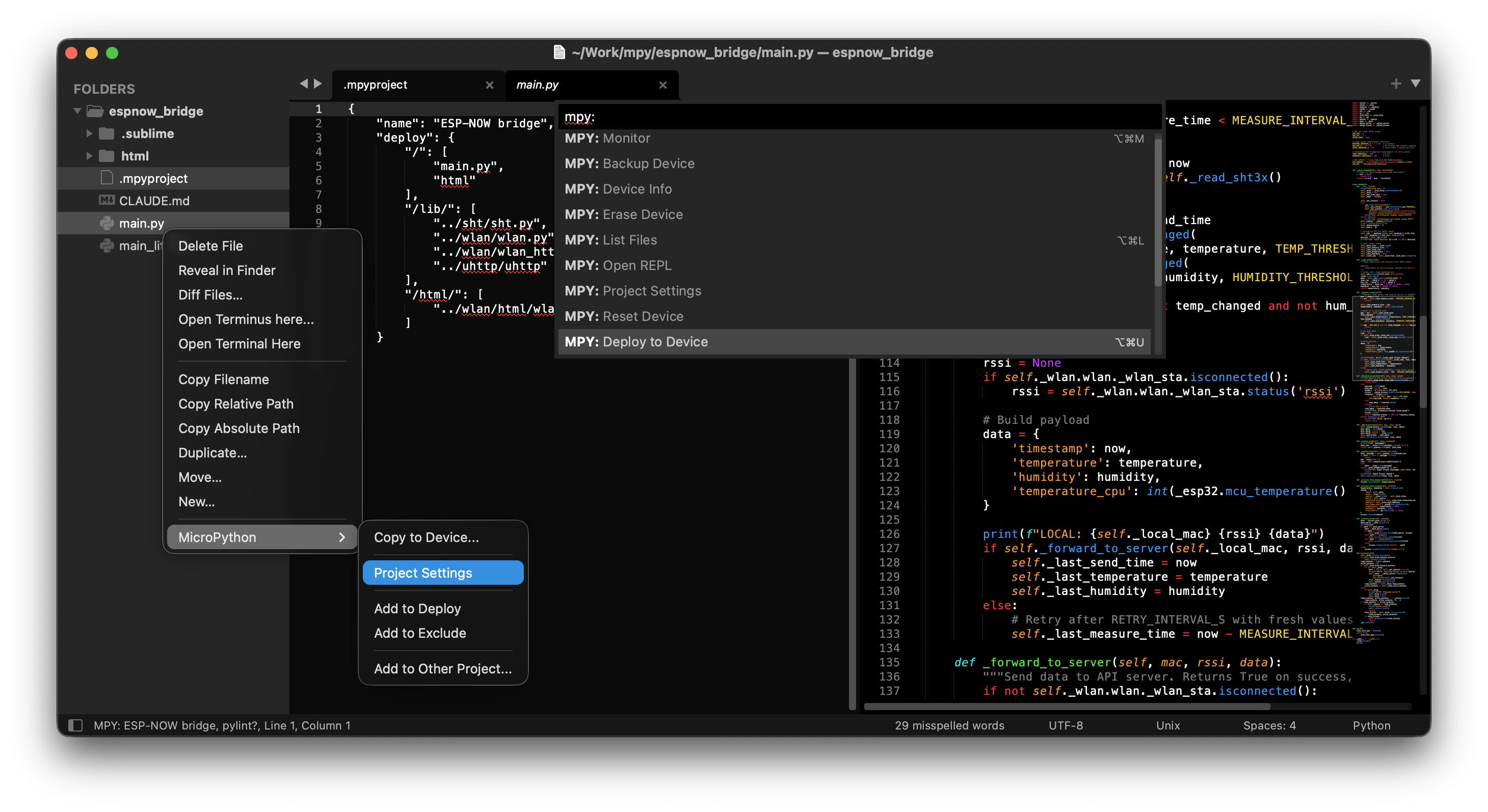
Why MpyTool?
- One-click deploy - Write code, hit a shortcut, see it running on device
- Instant feedback - Monitor serial output without leaving the editor
- Project-based workflow - Configure once, deploy anywhere
- Multiple devices - Switch between boards effortlessly
Features
- Auto-detection - Finds
.mpyprojectfrom current file upward - Manual selection - Switch between multiple projects
- Port selection - Prompts when multiple devices connected or configured port unavailable
- Compile to .mpy - Optional bytecode compilation for faster imports and less RAM usage
- Run current file - Execute current Python file directly on device
- Multiple reset modes - Soft, machine, RTS, bootloader
- Status bar - Shows active project name
- Backup/Restore - Save and restore device filesystem
- Terminus integration - REPL inside Sublime Text (falls back to external terminal)
Quick Start
- Install mpytool CLI:
pip install mpytool - Open Command Palette (
Cmd+Shift+P/Ctrl+Shift+P) - Run
MPY: New Project...to create.mpyprojectin your project root - Use
MPY: Deploy to Device(Cmd+Option+U) to upload and run
Installation
Package Control (recommended)
- Open Command Palette
- Run
Package Control: Install Package - Search for
mpytool
Manual
Clone or download to Sublime Text Packages directory:
# macOS
cd ~/Library/Application\ Support/Sublime\ Text/Packages
git clone https://github.com/pavelrevak/mpytool-sublime.git

# Linux
cd ~/.config/sublime-text/Packages
git clone https://github.com/pavelrevak/mpytool-sublime.git
Commands
All commands available via Command Palette (Cmd+Shift+P) with MPY: prefix.
| Command | Description |
|---|---|
| Deploy to Device | Upload files + reset + monitor output |
| Sync to Device | Upload files + reset (no monitor) |
| Run Current File | Run current .py file on device |
| Monitor | Watch serial output |
| Open REPL | Interactive Python console |
| Reset Device | Soft/machine/hardware reset |
| List Files | Show file tree on device |
| Device Info | Show device information |
| Backup Device | Download all files to .backup/ |
| Restore Backup | Upload .backup/ to device |
| Erase Device | Remove all files from device |
| New Project… | Create .mpyproject file |
| Project Settings | Open .mpyproject for editing |
| Select Project… | Choose active project |
| Select Connection… | Choose serial port or network address for project |
| Stop | Stop running process |
Keyboard Shortcuts
| macOS | Windows/Linux | Command |
|---|---|---|
Cmd+Option+U |
Ctrl+Alt+U |
Deploy to Device |
Cmd+Option+M |
Ctrl+Alt+M |
Monitor |
Sidebar Menu
Right-click on files/folders → MicroPython:
- New Project… - Create new project here
- Project Settings - Open project configuration
- Set as Active Project - Set this project as active
- Copy to Device… - Upload file or folder
- Add to Deploy - Add to deploy configuration
- Add to Exclude - Add to exclude list
- Add to Other Project… - Add to another project's deploy
Configuration
.mpyproject
Create .mpyproject in your project root:
{
    "name": "my-project",
    "port": "auto",
    "compile": true,
    "deploy": {
        "": ["./"]
    },
    "exclude": ["__pycache__", "*.pyc", ".backup"]
}
| Field | Description |
|---|---|
name |
Project name (shown in status bar) |
port |
Selected serial port or "auto" for auto-detection |
address |
Selected network address host:port (WebREPL) |
addresses |
List of available network addresses for selection menu |
compile |
Compile .py to .mpy before upload (requires mpy-cross) |
deploy |
Map of device paths → local sources |
exclude |
Patterns to exclude from upload |
Connection priority: if port is set and currently detected, it is used directly. Otherwise if address is set, it is used directly. Otherwise a selection menu is shown with all detected ports plus addresses.
Deploy Format
Device paths use mpytool : prefix convention — paths are relative to device CWD
(default /). Use / prefix for absolute paths (e.g. "/lib/" → :/lib/).
Deploy supports two modes based on destination path:
Directory mode - destination is "" or ends with /:
“json
"deploy”: {
“”: [“./”], // upload to device CWD
“lib/”: [“mylib/”, “utils.py”] // upload multiple items to lib/
}
**Rename mode** - destination doesn't end with `/`:
```json
"deploy": {
    "main.py": "src/app.py",       // upload and rename file
    "lib/driver": "../drivers/v2"  // upload and rename directory
}
Deploy Examples
// Upload entire project to device CWD
"deploy": {
    "": ["./"]
}

// Upload specific files to specific locations
"deploy": {
    "": ["main.py", "boot.py"],
    "lib/": ["lib/", "../shared/utils.py"]
}

// Upload with rename
"deploy": {
    "": ["./"],
    "config.json": "config_prod.json"
}
Plugin Settings
Preferences → Package Settings → MpyTool → Settings:
{
    "mpytool_path": "mpytool",
    "deploy_on_save": false
}
| Setting | Description |
|---|---|
mpytool_path |
Path to mpytool executable |
deploy_on_save |
Auto-deploy file on save (default: false) |
Deploy on Save
When deploy_on_save is enabled, saving a file automatically deploys it to device if:
- File is within project sources (defined in deploy)
- File doesn't match any exclude pattern
Enable globally in settings or per-project in .mpyproject:
{
    "deploy_on_save": true,
    "deploy": {"": ["./"]}
}
Requirements
License
MIT