
CodeContinue
LLM powered Sublime Text plugin to autocomplete inline code
Details
Installs
- Total 516
- Win 230
- Mac 146
- Linux 140
| Oct 17 | Oct 16 | Oct 15 | Oct 14 | Oct 13 | Oct 12 | Oct 11 | Oct 10 | Oct 9 | Oct 8 | Oct 7 | Oct 6 | Oct 5 | Oct 4 | Oct 3 | Oct 2 | Oct 1 | Sep 30 | Sep 29 | Sep 28 | Sep 27 | Sep 26 | Sep 25 | Sep 24 | Sep 23 | Sep 22 | Sep 21 | Sep 20 | Sep 19 | Sep 18 | Sep 17 | Sep 16 | Sep 15 | Sep 14 | Sep 13 | Sep 12 | Sep 11 | Sep 10 | Sep 9 | Sep 8 | Sep 7 | Sep 6 | Sep 5 | Sep 4 | Sep 3 | Sep 2 | |
|---|---|---|---|---|---|---|---|---|---|---|---|---|---|---|---|---|---|---|---|---|---|---|---|---|---|---|---|---|---|---|---|---|---|---|---|---|---|---|---|---|---|---|---|---|---|---|
| Windows | 0 | 2 | 0 | 2 | 3 | 2 | 0 | 1 | 2 | 2 | 3 | 2 | 3 | 2 | 2 | 2 | 1 | 4 | 1 | 1 | 1 | 5 | 1 | 3 | 0 | 2 | 0 | 0 | 0 | 1 | 1 | 1 | 1 | 1 | 1 | 3 | 1 | 1 | 1 | 2 | 1 | 1 | 0 | 4 | 3 | 4 |
| Mac | 0 | 3 | 0 | 2 | 0 | 0 | 1 | 0 | 2 | 0 | 0 | 2 | 0 | 0 | 0 | 0 | 1 | 1 | 0 | 1 | 0 | 1 | 0 | 1 | 1 | 1 | 0 | 0 | 1 | 1 | 0 | 2 | 0 | 0 | 0 | 0 | 1 | 1 | 1 | 0 | 0 | 0 | 0 | 0 | 4 | 1 |
| Linux | 0 | 3 | 0 | 1 | 1 | 0 | 0 | 0 | 1 | 2 | 1 | 0 | 0 | 0 | 1 | 1 | 0 | 0 | 0 | 1 | 0 | 0 | 0 | 1 | 2 | 1 | 0 | 0 | 0 | 0 | 0 | 4 | 1 | 2 | 1 | 0 | 1 | 1 | 2 | 0 | 1 | 0 | 0 | 1 | 4 | 2 |
Readme
- Source
- raw.githubusercontent.com
CodeContinue - AI Code Completion for Sublime Text
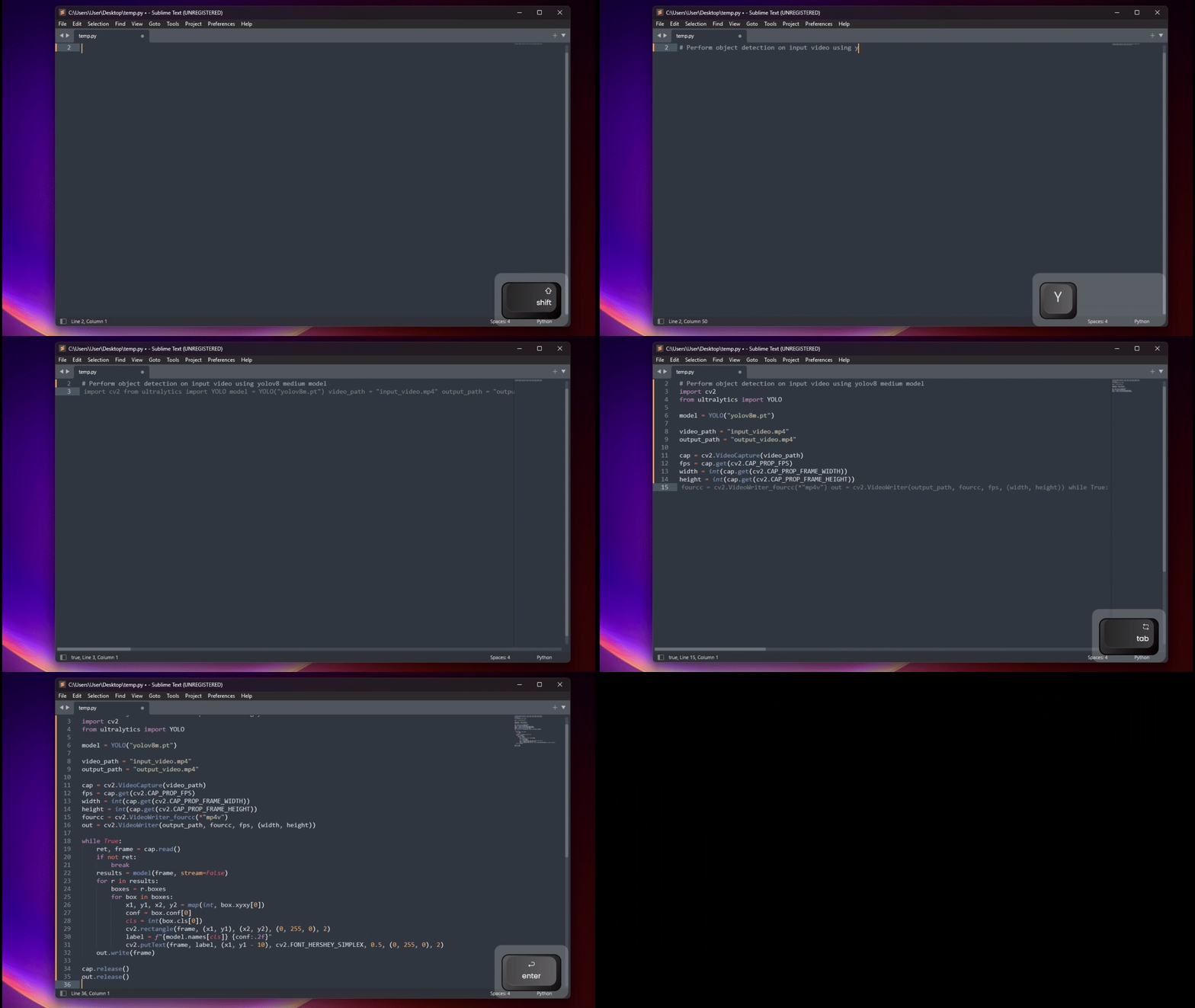
An LLM-powered Sublime Text plugin that provides intelligent inline code completion suggestions, in-place code editing, and code chat using OpenAI-compatible or Anthropic APIs. Check out the CodeContinue blog post here.
Features
- Fast inline code completion: Powered by your choice of local or cloud LLM.
- Inline Edit & Refactor: Select code >> right-click >> CodeContinue: Edit Selection to rewrite code using natural language instructions.
- Chat about code: Select code >> right-click >> CodeContinue: Chat about Selection to discuss code in an interactive split-view chat.
- Automatic Endpoint & Model Discovery: Paste your server address (e.g.
http://localhost:1234orhttps://api.openai.com); CodeContinue automatically normalizes the URL and detects available models from/v1/models. - Flexible Keyboard Shortcuts:
Enterto suggest,Tabto accept (⚠️ Note: Keybindings are customizable and enabled via settings). - Multi-Provider Support: Works out-of-the-box with OpenAI, Anthropic, LM Studio, Ollama, vLLM, and local OpenAI-compatible servers.
- Context-aware: Uses surrounding code context to produce accurate suggestions.
Installation
Option 1: Install via Package Control (Recommended)
- Open the command palette via
Ctrl + Shift + P(orCmd + Shift + Pon macOS). - Type
Package Control: Install Packageand press Enter. - Search for
CodeContinueand press Enter to install. - Configure CodeContinue:
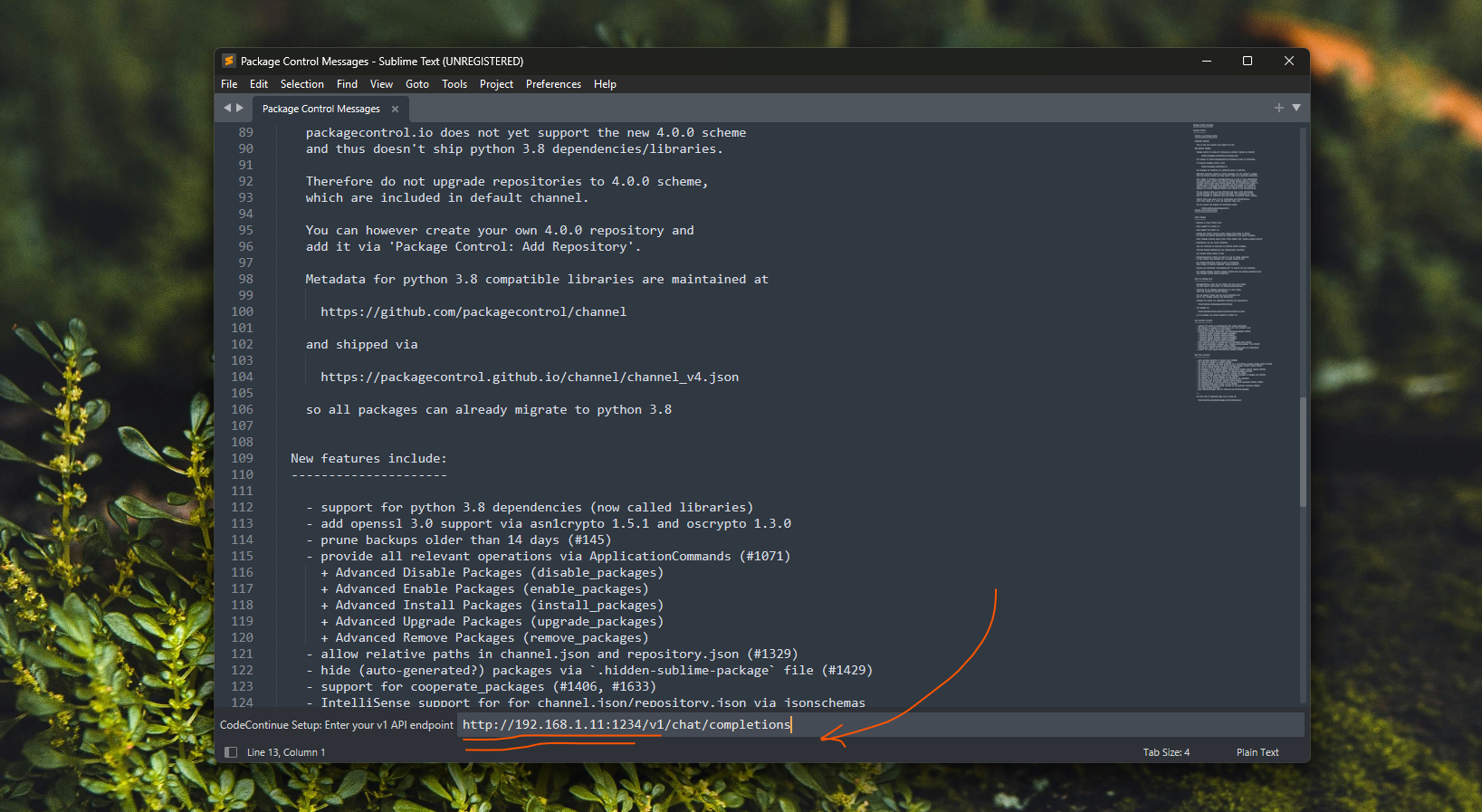
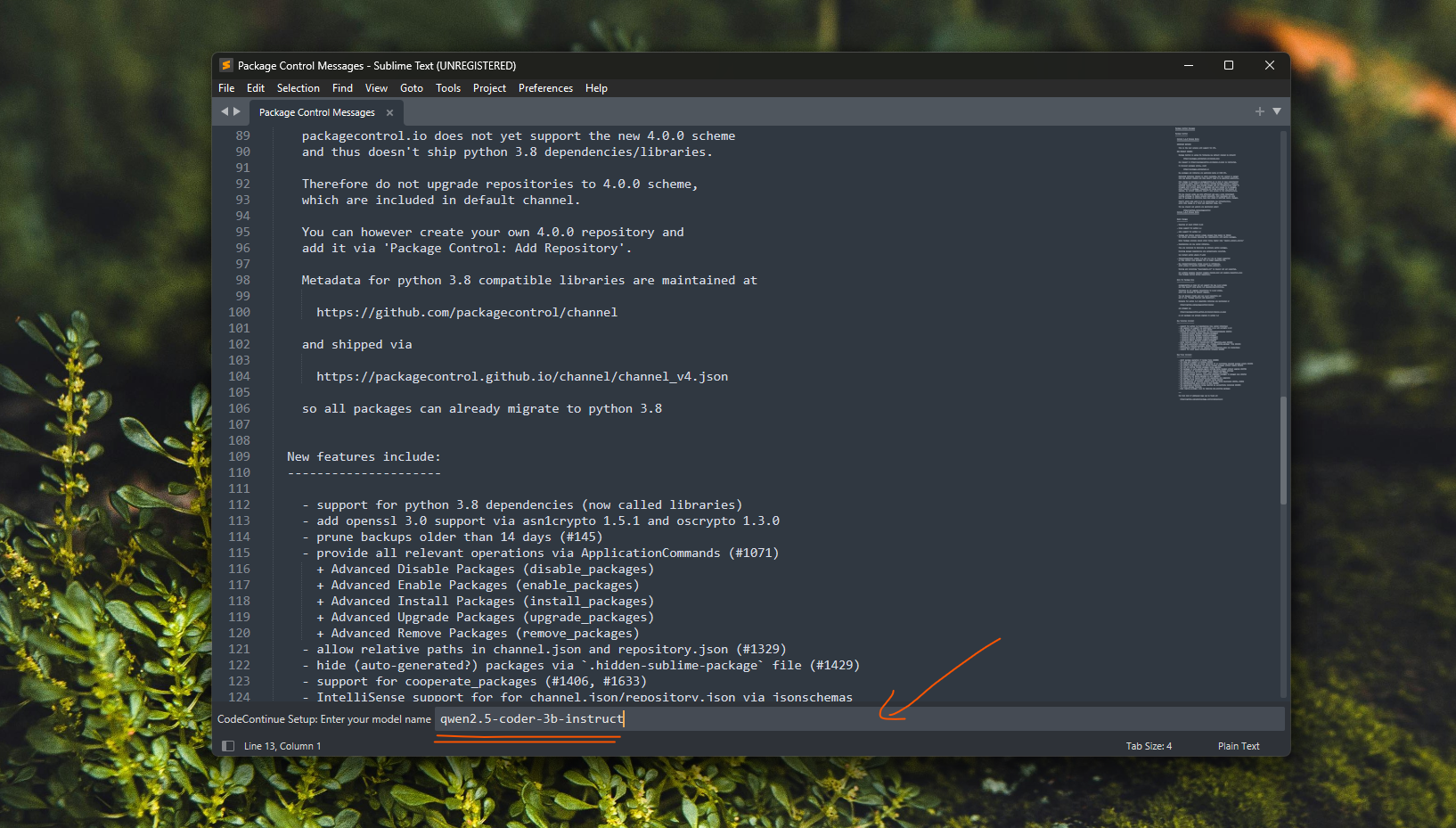
- The setup wizard appears automatically on first run (or run
Ctrl+Shift+P>>CodeContinue: Configure). - Enter your endpoint URL (e.g.
http://localhost:1234for LM Studio orhttps://api.openai.com). - Select your model from the auto-detected list or enter it manually.
- The setup wizard appears automatically on first run (or run
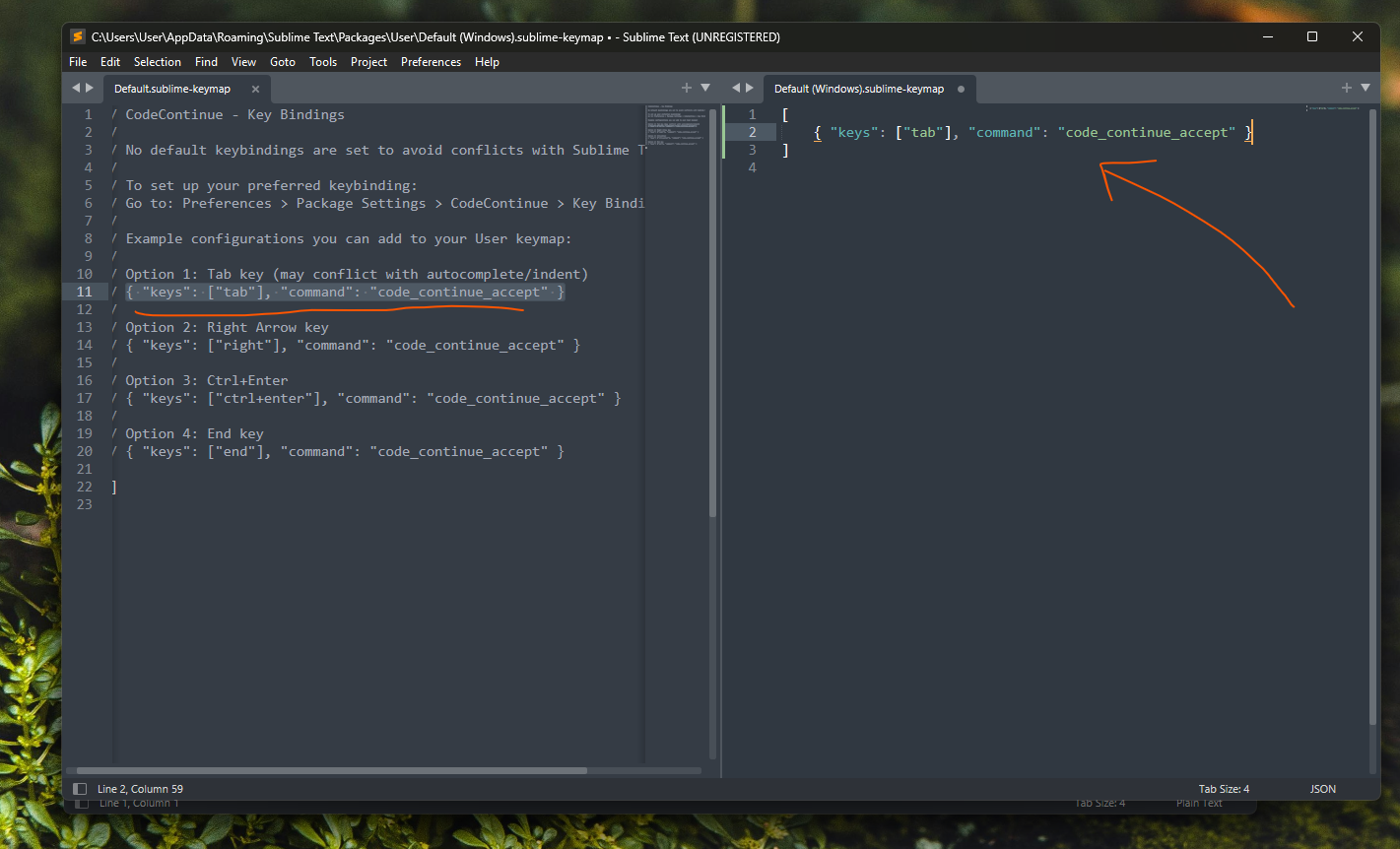
Enable Key Bindings
Keybindings are not enabled by default to prevent conflicts with existing packages.
To enable keybindings:
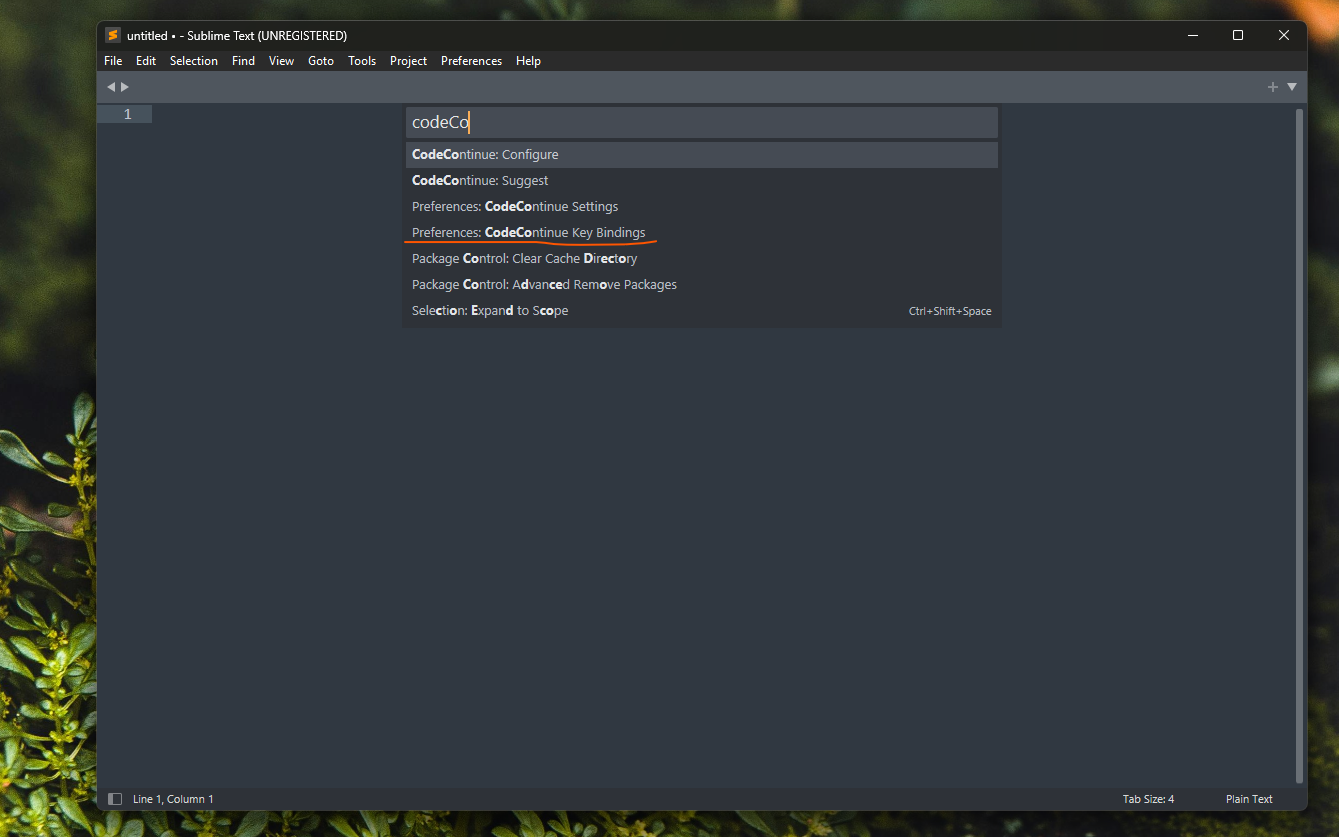
1. Open the command palette (Ctrl + Shift + P).
2. Type Preferences: CodeContinue Key Bindings and press Enter.
3. Add your preferred keybinding to the User keymap (e.g. Tab, Right Arrow, or Ctrl+Enter):
[
    { "keys": ["tab"], "command": "code_continue_accept" }
]
Option 2: Manual Install (For Developers)
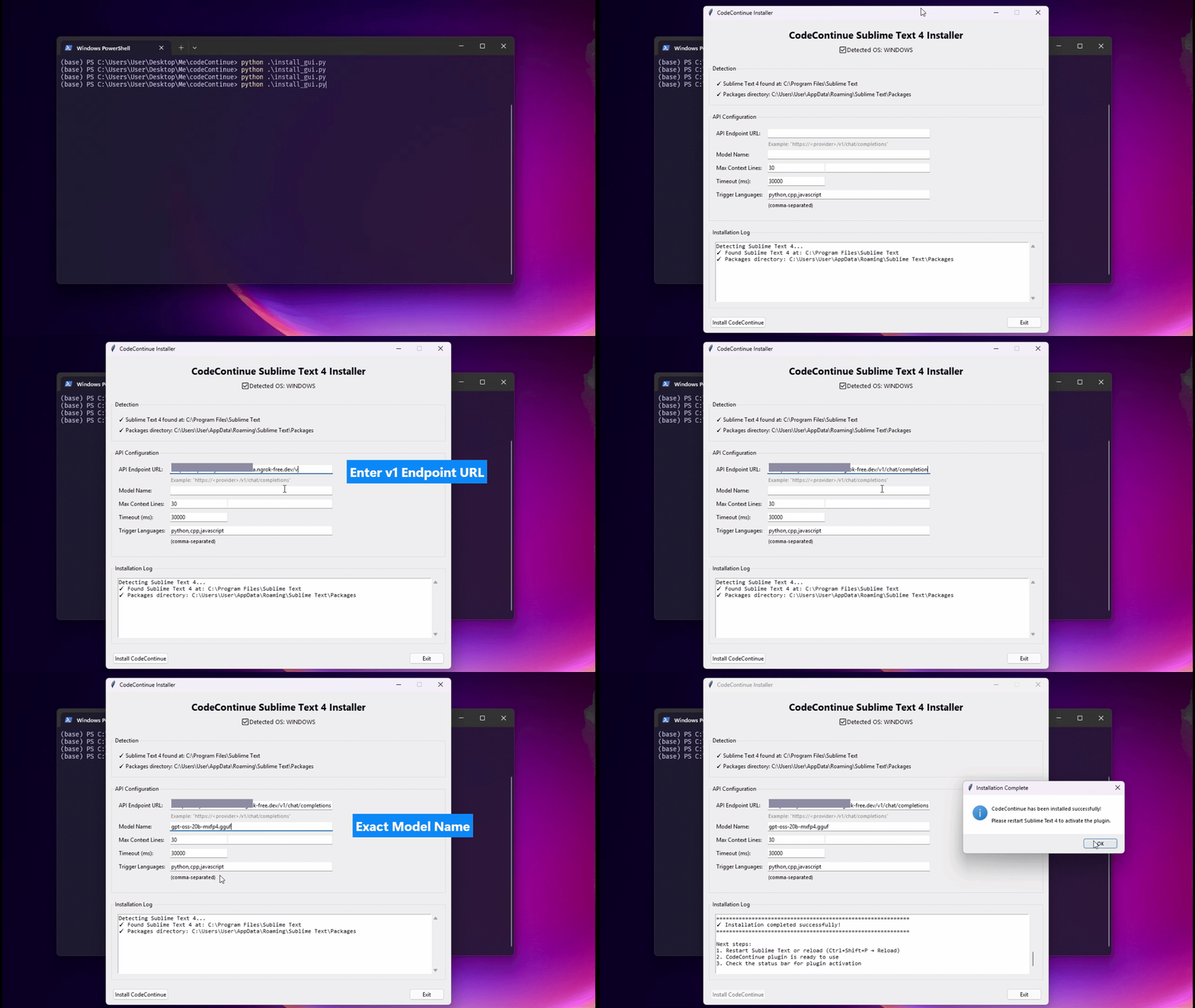
Click to view manual installation options
- Python CLI Installer
python tools/install.py
Interactive command-line installer with auto-detection, connectivity pre-flight check, and dynamic model discovery.
- GUI Installer
python tools/install_gui.py
Cross-platform Tkinter graphical installer with automatic model detection and customizable configuration.
Configuration
Click to expand configuration options
Settings are saved automatically in Packages/User/CodeContinue.sublime-settings. Reconfigure anytime via Ctrl+Shift+P >> CodeContinue: Configure.
endpoint: Your API endpoint URL - Required
- LM Studio:
http://localhost:1234 - Ollama:
http://localhost:11434 - OpenAI:
https://api.openai.com(orhttps://api.openai.com/v1/chat/completions) - Anthropic:
https://api.anthropic.com(orhttps://api.anthropic.com/v1/messages)
- LM Studio:
model: The model name for completions - Required
- Examples:
qwen2.5-coder-3b-instruct,gpt-4o,claude-3-5-sonnet-20241022
- Examples:
api_key: Authentication key (optional)
- Required for cloud providers (e.g.
sk-...for OpenAI,sk-ant-...for Anthropic). - Leave blank for local endpoints that do not require auth.
- Required for cloud providers (e.g.
max_context_lines: Number of surrounding code lines sent to the model (default:
30).timeout_ms: Request timeout in milliseconds (default:
30000).trigger_language: Array of language scopes to enable completion for (e.g.
["python", "cpp", "javascript", "typescript", "go", "rust"]).system_prompt: Custom system prompt for inline completions.
- Leave blank (
"") to use the built-in default expert prompt. - Set a custom prompt to tune smaller models or suppress docstrings/comments.
- Leave blank (
debug: Enable debug logging (default:
false).- Set to
trueto view detailed request/response logs inView >> Show Console.
- Set to
Requirements
- Sublime Text 4
- Python 3.8+ (bundled with Sublime Text 4)
- Access to a local LLM runner (LM Studio, Ollama, vLLM) or a cloud API (OpenAI, Anthropic, etc.)
Troubleshooting
Click to expand troubleshooting tips
Setup wizard not appearing
- Restart Sublime Text:
File >> Exit, then reopen. - Manually run:
Preferences >> Package Settings >> CodeContinue >> SettingsorCtrl+Shift+P>>CodeContinue: Configure.
Suggestions not appearing
- Check that the current file's syntax matches an entry in
trigger_language. - Verify your API endpoint is accessible.
- Enable debug logging (
"debug": true) and checkView >> Show Console. - Make sure keybindings are configured in
Preferences: CodeContinue Key Bindings.
Timeout errors
- Increase
timeout_msin settings (e.g.45000for larger local models). - Check that your local LLM server is running and responding.
Authentication or connection errors
- Verify your API key is correct.
- For local servers (LM Studio / Ollama), ensure the local server is started and listening on the configured port.
Advanced Configuration Examples
Click to expand provider configuration examples
Local LM Studio: “json { "endpoint”: “http://localhost:1234/v1/chat/completions”, “model”: “qwen2.5-coder-3b-instruct” }
**Local Ollama:**
```json
{
    "endpoint": "http://localhost:11434/v1/chat/completions",
    "model": "qwen2.5-coder:3b"
}
OpenAI: “json { "endpoint”: “https://api.openai.com/v1/chat/completions”, “model”: “gpt-4o”, “api_key”: “sk-your-openai-key” }
**Anthropic:**
```json
{
    "endpoint": "https://api.anthropic.com/v1/messages",
    "model": "claude-3-5-sonnet-20241022",
    "api_key": "sk-ant-your-anthropic-key"
}
License
See LICENSE file for details.