
GeminiCLI
Interactive AI coding agent powered by Google Antigravity and Gemini CLI
Details
Installs
- Total 633
- Win 340
- Mac 134
- Linux 159
| Oct 13 | Oct 12 | Oct 11 | Oct 10 | Oct 9 | Oct 8 | Oct 7 | Oct 6 | Oct 5 | Oct 4 | Oct 3 | Oct 2 | Oct 1 | Sep 30 | Sep 29 | Sep 28 | Sep 27 | Sep 26 | Sep 25 | Sep 24 | Sep 23 | Sep 22 | Sep 21 | Sep 20 | Sep 19 | Sep 18 | Sep 17 | Sep 16 | Sep 15 | Sep 14 | Sep 13 | Sep 12 | Sep 11 | Sep 10 | Sep 9 | Sep 8 | Sep 7 | Sep 6 | Sep 5 | Sep 4 | Sep 3 | Sep 2 | Sep 1 | Aug 31 | Aug 30 | Aug 29 | |
|---|---|---|---|---|---|---|---|---|---|---|---|---|---|---|---|---|---|---|---|---|---|---|---|---|---|---|---|---|---|---|---|---|---|---|---|---|---|---|---|---|---|---|---|---|---|---|
| Windows | 0 | 2 | 2 | 1 | 0 | 1 | 0 | 4 | 2 | 0 | 0 | 1 | 5 | 2 | 2 | 1 | 1 | 0 | 1 | 0 | 3 | 2 | 1 | 1 | 1 | 3 | 4 | 0 | 1 | 3 | 1 | 0 | 2 | 0 | 1 | 2 | 1 | 4 | 0 | 1 | 1 | 1 | 0 | 0 | 0 | 1 |
| Mac | 1 | 1 | 1 | 0 | 0 | 0 | 0 | 3 | 0 | 0 | 1 | 1 | 0 | 0 | 0 | 0 | 1 | 1 | 0 | 1 | 1 | 0 | 0 | 0 | 1 | 2 | 0 | 1 | 0 | 0 | 0 | 3 | 0 | 0 | 0 | 1 | 0 | 1 | 0 | 1 | 0 | 0 | 1 | 0 | 1 | 0 |
| Linux | 0 | 0 | 0 | 1 | 0 | 1 | 2 | 2 | 1 | 0 | 0 | 0 | 0 | 1 | 0 | 0 | 0 | 1 | 0 | 0 | 1 | 1 | 0 | 1 | 0 | 1 | 1 | 0 | 0 | 0 | 0 | 2 | 1 | 0 | 0 | 0 | 0 | 0 | 0 | 0 | 0 | 0 | 1 | 1 | 0 | 0 |
Readme
- Source
- raw.githubusercontent.com
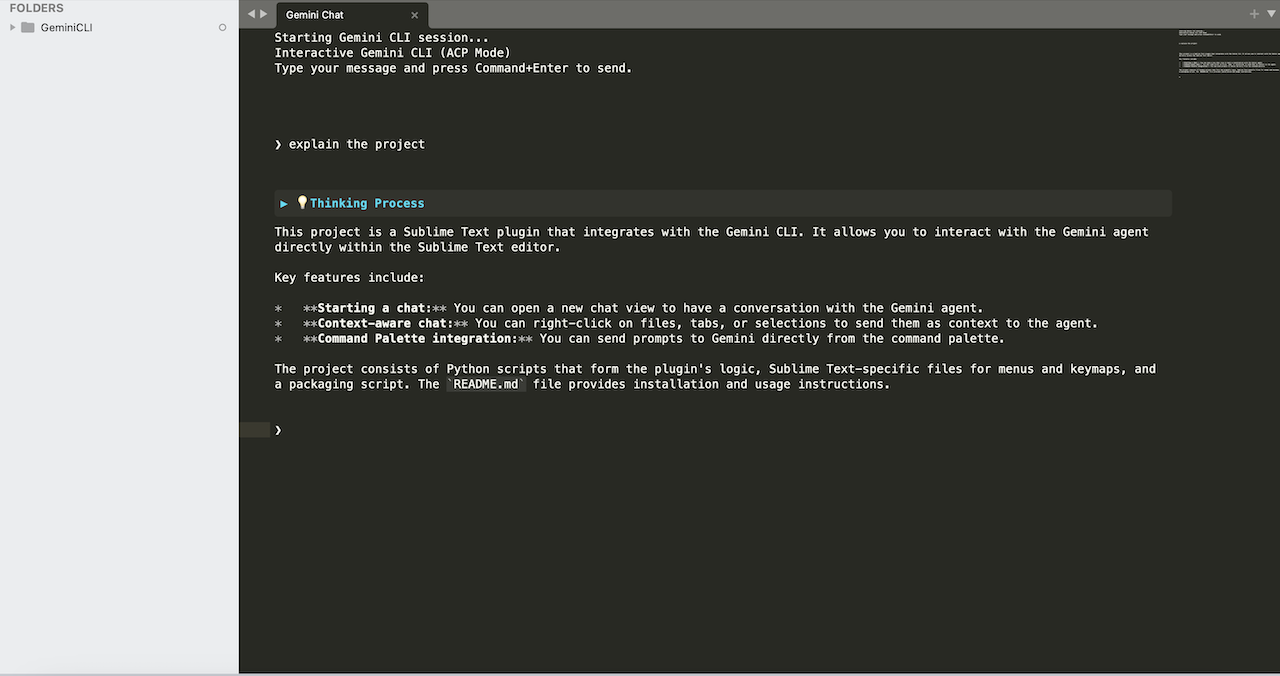
Google Antigravity & Gemini for Sublime Text

Interactive AI coding agent for Sublime Text powered by Google Antigravity and Gemini CLI, with interactive chat, workspace-aware context and artifacts support.
Key Features
- Dual Google Backends: Seamlessly toggle between Google Antigravity (agy) and legacy Gemini CLI.
- Rich Workspace Context: Reference files and selections via
@file#L1-10, with full multi-root project support. - Artifacts: Review and navigate implementation plans and walkthroughs generated by Antigravity.
- Session Management: Pick up right where you left off with workspace-scoped conversation history.
Looking to use Claude Code or OpenAI Codex in Sublime Text, install the TermMate package, a native multi-agent coding assistant with seamless agent switching, file context, plan mode, and session resume. Explore TermMate’s features for Sublime Text.
Prerequisites
This plugin supports google antigravity and Gemini CLI. You can install either one depending on your workflow:
# Antigravity CLI (macOS / Linux)
curl -fsSL https://antigravity.google/cli/install.sh | bash

# Antigravity CLI (Windows PowerShell)
irm https://antigravity.google/cli/install.ps1 | iex

# install geminicli via npm
npm install -g @google/gemini-cli
Install GeminiCLI plugin from Package Control
The easiest way to install this plugin is through Package Control.
- Open the command palette (
Cmd+Shift+Pon macOS,Ctrl+Shift+Pon Windows/Linux). - Type
Package Control: Install Packageand pressEnter. - Search for
GeminiCLIand pressEnter.
The plugin automatically detects antigravity and geminicli. If your CLI binaries are in non-standard locations, configure them under Preferences -> Package Settings -> GeminiCLI -> Settings:
{
    "antigravity_command": "/usr/local/bin/agy",
    "gemini_command": "/usr/local/bin/gemini"
}
Authentication
You can authenticate using either your Google Account (OAuth) or a Gemini API Key:
Google Account OAuth: Run
agyin your terminal:agy
The CLI automatically launches your default web browser to complete Google account sign-in.
Gemini API Key: If you prefer using an API key, configure
~/.gemini/antigravity-cli/settings.jsonwith"modelProvider": "gemini", then set your API key inPreferences -> Package Settings -> GeminiCLI -> Settings:"env": { "GEMINI_API_KEY": "your-api-key-here" }
Google Vertex AI (geminicli): If you're using Vertex AI on Google Cloud, configure your project and location in the
envsetting:"env": { "GOOGLE_CLOUD_PROJECT": "your-project-id", "GOOGLE_CLOUD_LOCATION": "us-central1" }
Ensure you have authenticated via gcloud auth application-default login.
Start Gemini Chat
- Open the command palette (
Cmd+Shift+Pon macOS,Ctrl+Shift+Pon Windows/Linux). - Type
Gemini: Start Chatand pressEnter. Alternatively, you can use a shortcut to start the chat (see Key Bindings for configuration). - Type your message and press
Ctrl+Enter(orSuper+Enteron macOS) to send.
To stop a running conversation, press Shift+Escape (or Cmd+Escape on macOS), or run Gemini: Stop Conversation from the command palette.
For detailed usage and features, see the Gemini CLI for Sublime Text Guide.
Using Gemini in Sublime Text
Chat with Current File or Selection
You can right-click in any file, tab, or item in the sidebar, and select Chat with Gemini agent. This will:
- Open the Gemini chat view (if not already open).
- Insert a reference to the file (
@filename) or selected line range (@filename#L1-10) into the message prompt when the current view is file-backed. - Tagged files will be automatically sent as context to Gemini.
Set Gemini Working Space
Right-click on any folder in the sidebar and select Set Gemini Working Space to set the primary working directory for Gemini. This affects the current working directory when Gemini executes commands or accesses files.
Additionally, this plugin supports Sublime Text's multi-root workspaces. By default, it injects all currently open folders into the Gemini CLI automatically, ensuring the agent can access your entire open project across multiple roots. This can be disabled via the share_workspace_folders setting in GeminiCLI.sublime-settings.
Quick Message from Current Tab
From the current editor tab, use the command palette (Gemini: Quick Message) to compose a message in input panel and send it directly to Gemini. Any selected file ranges are automatically included as editable context references; if no text is selected, no file context is added.
Gemini Approval Mode
Gemini CLI performs various actions (tools) like reading files, searching the web, or executing commands. You can control how much manual approval is required for these actions via the command palette: Gemini: Approval Mode
- Default: Prompts for your approval by default.
- Allow Edit: Automatically approves “safe” read/edit operations; still prompts for “risky” commands.
- Accept All: Automatically approves all tool calls, including shell command execution.
Select Model & Reasoning Effort
- Use the command palette (**
Gemini: Set Model**) to choose the desired model. For supported models (such as Antigravity models), you will automatically be prompted to select the reasoning effort level (low,medium, orhigh). - Use
Gemini: Set Reasoning Effortto adjust the thinking/reasoning effort directly without changing the current model.
Switch Agent Provider
Use the command palette (Gemini: Agent) to toggle between Gemini CLI and Antigravity (agy / antigravity). When switched, your active chat session seamlessly resets and connects to the selected agent provider.
Clear Session
To reset the current conversation history and start a completely fresh context, open the command palette and run Gemini: Clear Session. This will reload the agent and clear its memory for the current workspace.
Resume Session
To resume a previous conversation for the current workspace (or past workspaces), open the command palette and run Gemini: Resume Session (supported for Antigravity). You will be presented with an interactive quick panel of past sessions showing the initial prompt preview and last modified timestamp. Selecting a session restores the conversation context, recent turns, and plan/walkthrough artifacts.
Key Bindings
In the Gemini chat view, you can use the Up and Down arrow keys to scroll through your input history, and press Shift+Escape (or Super+Escape on macOS) to stop or interrupt an active conversation.
This package does not include a global shortcut by default. You can add key bindings manually:
- Go to
Preferences -> Key Bindings. - Add the following lines to your user keymap file:
[
       {
           "keys": ["primary+alt+g"],
           "command": "gemini_cli",
           "context": [
               { "key": "is_widget", "operand": false }
           ]
       }
   ]
- Now you can use the shortcut
Primary+Alt+Gto start Gemini Chat (maps toCtrl+Alt+Gon Windows/Linux andSuper+Alt+Gon Mac).
Manual Installation from github
- Open Sublime Text and navigate to
Preferences->Browse Packages.... - This will open the
Packagesdirectory. clone the repository from github into the directory: │ - Rename the repository folder to
GeminiCLIdirectory; and Restart Sublime Text.
Gemini Context Interaction and Data Privacy
By default, this plugin does not send your entire workspace or file contents to Gemini. Data is only sent to the Google Gemini CLI in the following scenarios:
- Chat Messages: Any text you type directly into the Gemini Chat view.
- Explicit Context (@-mentions): When you use the
@filenamesyntax (either manually or via the “Gemini: Chat with this file” context menu), the content of the specified file or selected range is sent. - Tool-driven Context: If the Gemini agent requests to read a file or list a directory (and you have granted permission if required by the CLI), that information is sent back to the model as part of the interaction.
All communication happens via the gemini CLI tool installed on your system, which connects directly to Google's servers using your configured credentials (API key or OAuth).
License
This project is licensed under the MIT License — see the LICENSE file for details.