
Pain
Because there should be no pain when resizing panes. A minimalist pane-resizing plugin for Sublime Text 4.
Details
Installs
- Total 19
- Win 6
- Mac 6
- Linux 7
| Oct 6 | Oct 5 | Oct 4 | Oct 3 | Oct 2 | Oct 1 | Sep 30 | Sep 29 | Sep 28 | Sep 27 | Sep 26 | Sep 25 | Sep 24 | Sep 23 | Sep 22 | Sep 21 | Sep 20 | Sep 19 | Sep 18 | Sep 17 | Sep 16 | Sep 15 | Sep 14 | Sep 13 | Sep 12 | Sep 11 | Sep 10 | Sep 9 | Sep 8 | Sep 7 | Sep 6 | Sep 5 | Sep 4 | Sep 3 | Sep 2 | Sep 1 | Aug 31 | Aug 30 | Aug 29 | Aug 28 | Aug 27 | Aug 26 | Aug 25 | Aug 24 | Aug 23 | |
|---|---|---|---|---|---|---|---|---|---|---|---|---|---|---|---|---|---|---|---|---|---|---|---|---|---|---|---|---|---|---|---|---|---|---|---|---|---|---|---|---|---|---|---|---|---|
| Windows | 0 | 0 | 0 | 0 | 0 | 0 | 0 | 0 | 0 | 0 | 0 | 2 | 0 | 0 | 0 | 0 | 0 | 0 | 0 | 0 | 0 | 0 | 0 | 0 | 0 | 0 | 0 | 0 | 0 | 0 | 1 | 0 | 0 | 0 | 0 | 0 | 0 | 0 | 0 | 0 | 0 | 0 | 0 | 0 | 0 |
| Mac | 0 | 1 | 0 | 0 | 0 | 0 | 0 | 0 | 0 | 0 | 0 | 0 | 1 | 0 | 0 | 0 | 0 | 0 | 0 | 0 | 0 | 0 | 0 | 0 | 0 | 0 | 0 | 0 | 0 | 0 | 0 | 0 | 0 | 0 | 0 | 0 | 0 | 1 | 0 | 0 | 0 | 1 | 0 | 0 | 0 |
| Linux | 0 | 1 | 0 | 0 | 0 | 0 | 0 | 0 | 0 | 0 | 0 | 0 | 0 | 0 | 0 | 0 | 0 | 0 | 0 | 0 | 0 | 0 | 0 | 0 | 0 | 0 | 0 | 0 | 0 | 0 | 0 | 0 | 0 | 0 | 0 | 0 | 0 | 0 | 0 | 0 | 0 | 0 | 0 | 0 | 0 |
Readme
- Source
- raw.githubusercontent.com
Pain




A minimalist, fully tested pane-resizing plugin for Sublime Text 4.
Because there should be no pain when resizing panes.
Overview
Pain provides keyboard-driven pane resizing with two distinct resize modes: directional and growth. It is inspired by PanePane (no longer maintained) but rebuilt with a cleaner codebase, full type annotations, and support for both resize modes.
Resize Modes
Pain offers two ways of thinking about pane resizing. It maps four
arrow keys to two dimensions (width and height); the meaning of each
key depends on the active mode. You can switch between modes via the
command palette or by changing the resize_mode setting.
Directional Mode (default)
“Push the separator in a fixed direction.”
| Direction | Action | Suggested Binding |
|---|---|---|
→ |
Move separator rightward | Alt+Right |
← |
Move separator leftward | Alt+Left |
↓ |
Move separator downward | Alt+Down |
↑ |
Move separator upward | Alt+Up |
This mode is intuitive when using arrow keys: the separator always moves in the arrow's direction.
The direction is consistent regardless of which pane is focused, whether inner or outer (see Examples below).
[!TIP] This is particularly beneficial in a two-column setup where there is only one separator: the left and right arrow keys always move it in the arrow's direction, regardless of which pane is focused:
When in the flow, you just want the separator to move without thinking about which pane you are in.
Enable it with:
"resize_mode": "directional"
Growth Mode
“Make this pane bigger or smaller.”
| Direction | Action | Suggested Binding |
|---|---|---|
→ |
Increase width (grow pane wider) | Alt+Right |
← |
Decrease width (shrink pane narrower) | Alt+Left |
↓ |
Increase height (grow pane taller) | Alt+Down |
↑ |
Decrease height (shrink pane shorter) | Alt+Up |
This mode is intuitive when you think: “I want this pane to be larger.”
Which separator moves depends on the pane's position in the layout. For inner panes, this mode is identical to directional mode. The two modes differ only at boundary panes (see Examples below).
Enable it with:
"resize_mode": "growth"
Equalize
Distributes all separators evenly, resetting every pane in the given dimension to equal size.
Greedy Pane
By default, Pain stops a separator just before it would cross the next pane boundary. This preserves adjacent pane sizes and prevents one keypress from moving multiple separators.
When greedy_pane is enabled, Pain uses greedy behavior:
if the moved separator reaches a neighboring separator, the neighbor is
pushed by the same amount. The push can cascade through several panes.
If the cascade would hit the outer window edge, the resize is cancelled
and the layout is left unchanged.
Enable it with:
"greedy_pane": true
The setting works with both resize_mode values.
Minimum Pane Size
Pain prevents resize commands from making panes smaller than
minimum_pane_size percent in the resized dimension. The default is
10. Set it to 0 to allow the old one-percent boundary behavior.
This guard applies in both resize modes and with greedy_pane
enabled. Non-greedy resizing stops at the minimum. Greedy resizing can
push adjacent separators, but cancels the resize if the resulting
layout cannot satisfy the minimum for every pane.
Examples
Two-column layout
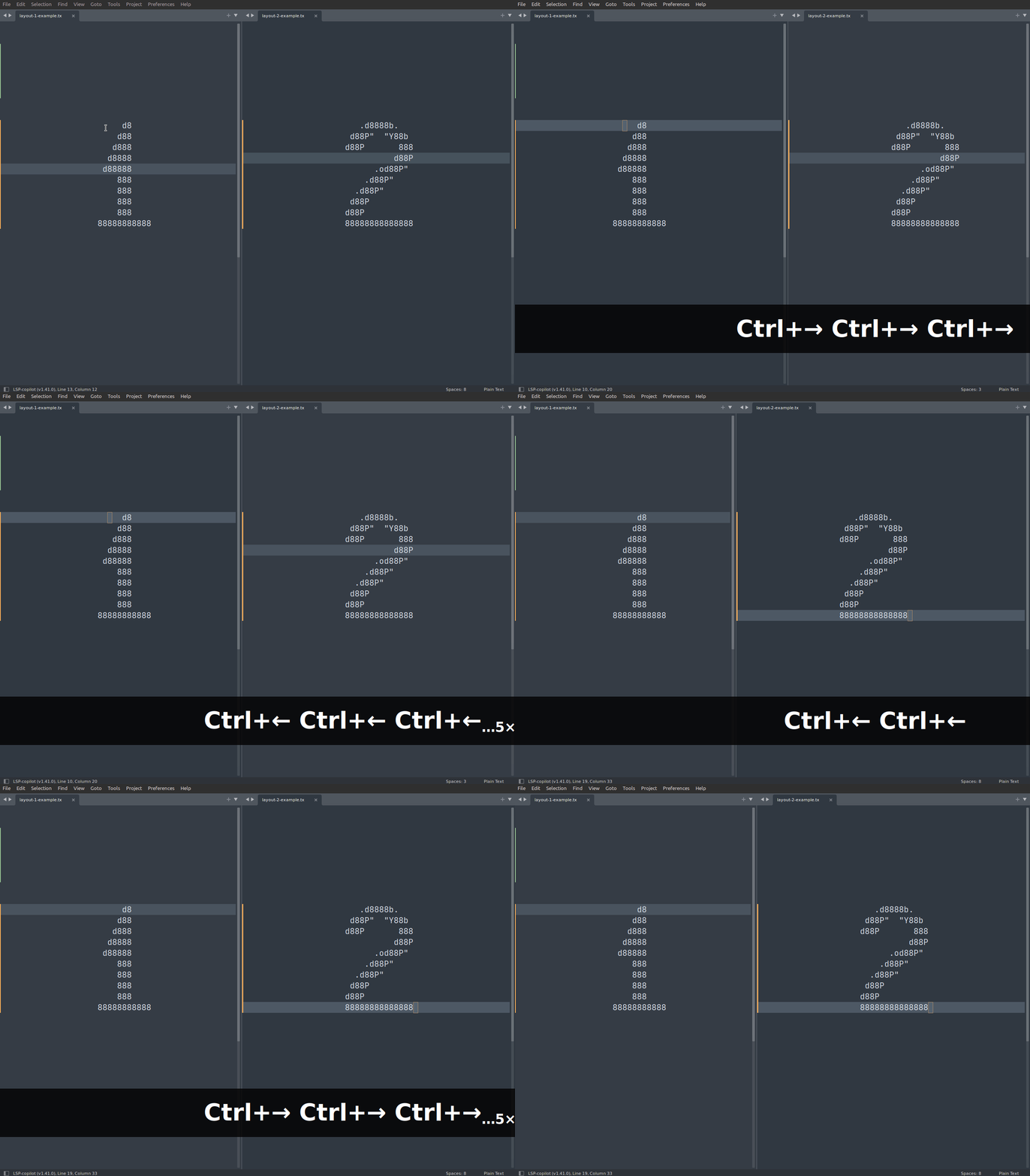
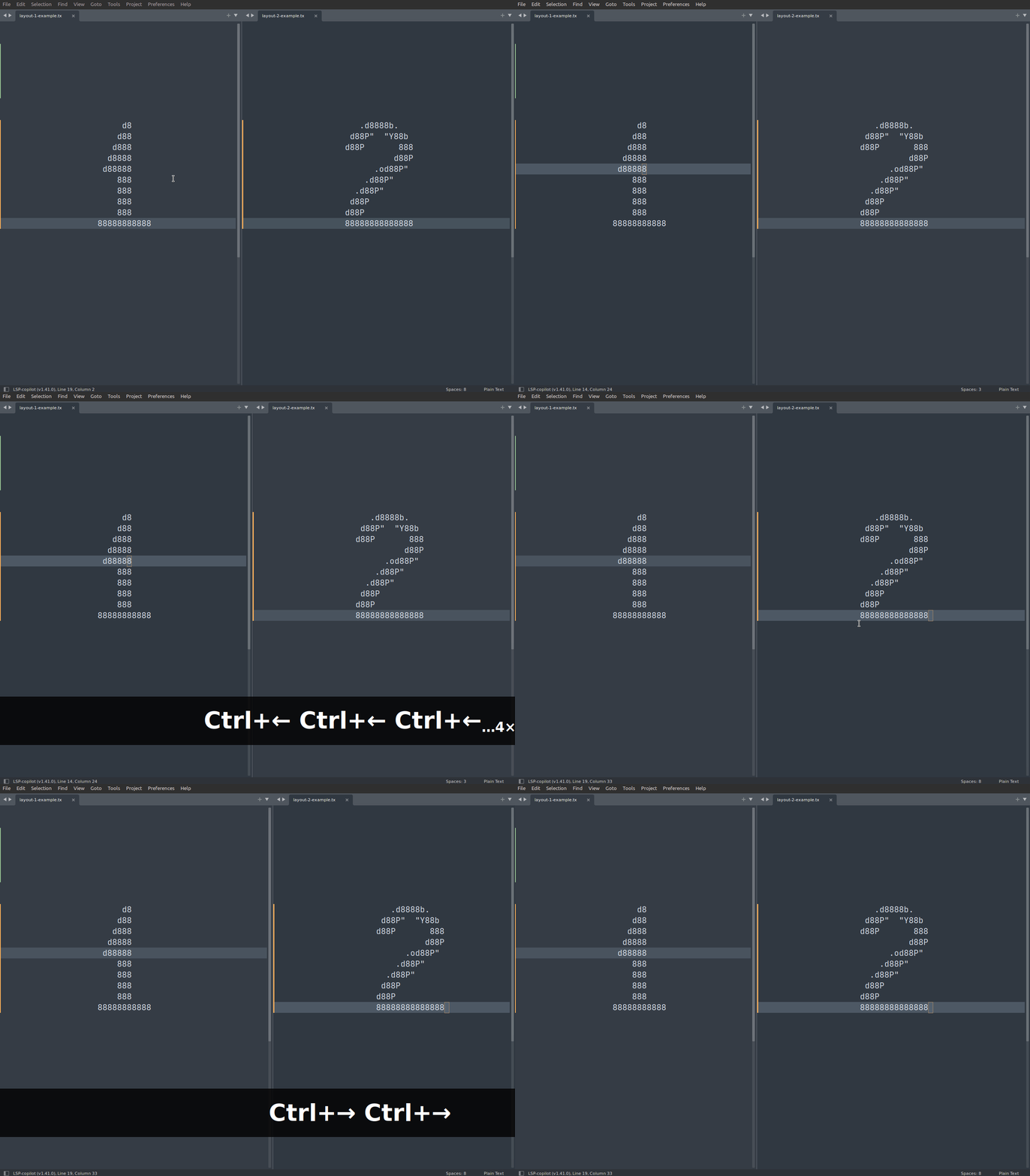
When focused on an inner pane regarding width (with a neighbor to the right), both modes behave identically: the right arrow key moves the right separator rightward, and the left arrow key moves it leftward.
+------------+------------+
|            |            |
|            |            |
|            |            |
|            |            |
|     1      |     2      |
|            |            |
|            |            |
|            |            |
|            |            |
+------------+------------+
Regarding width, pane 1 is an inner pane (it has a movable
separator on its right), while pane 2 is a boundary pane (its
right edge is the window border). If pane 1 has focus, both modes
behave identically: the middle separator is shifted left or right
with Alt+Left/Right.
The two modes differ when focused on a boundary pane. Consider the rightmost pane 2, which only has a separator on its left side (the right separator/boundary cannot be altered). Suppose it has focus:
- In directional mode, the left arrow key moves that separator leftward (the pane grows) and the right arrow key moves it rightward (the pane shrinks). The arrow always matches the direction of movement.
- In growth mode, the right arrow key means “grow this pane” (the separator moves leftward) and the left arrow key means “shrink this pane” (the separator moves rightward). The arrow reflects the intent, not the physical direction; thus, the separator moves opposite to the key you pressed.
The same logic applies vertically, e.g., in a two-row layout: the two modes only differ for the bottommost pane.
The demos below show both panes being resized. Pane 1 (inner) responds identically in both modes; pane 2 (boundary) responds differently.
| Directional Mode | Growth Mode |
 |
 |
Complex layouts
The demos below use a 7-pane layout.
+----------+---------+---------+
|          |         |         |
|          |    2    |    3    |
|    1     |         |         |
|          +----+----+----+----+
|          |    |         |    |
|          |  4 |         |  6 |
|          |    |    5    |    |
|          +----+         |    |
|          |    |         |    |
|          |  7 |         |    |
|          |    |         |    |
+----------+----+---------+----+
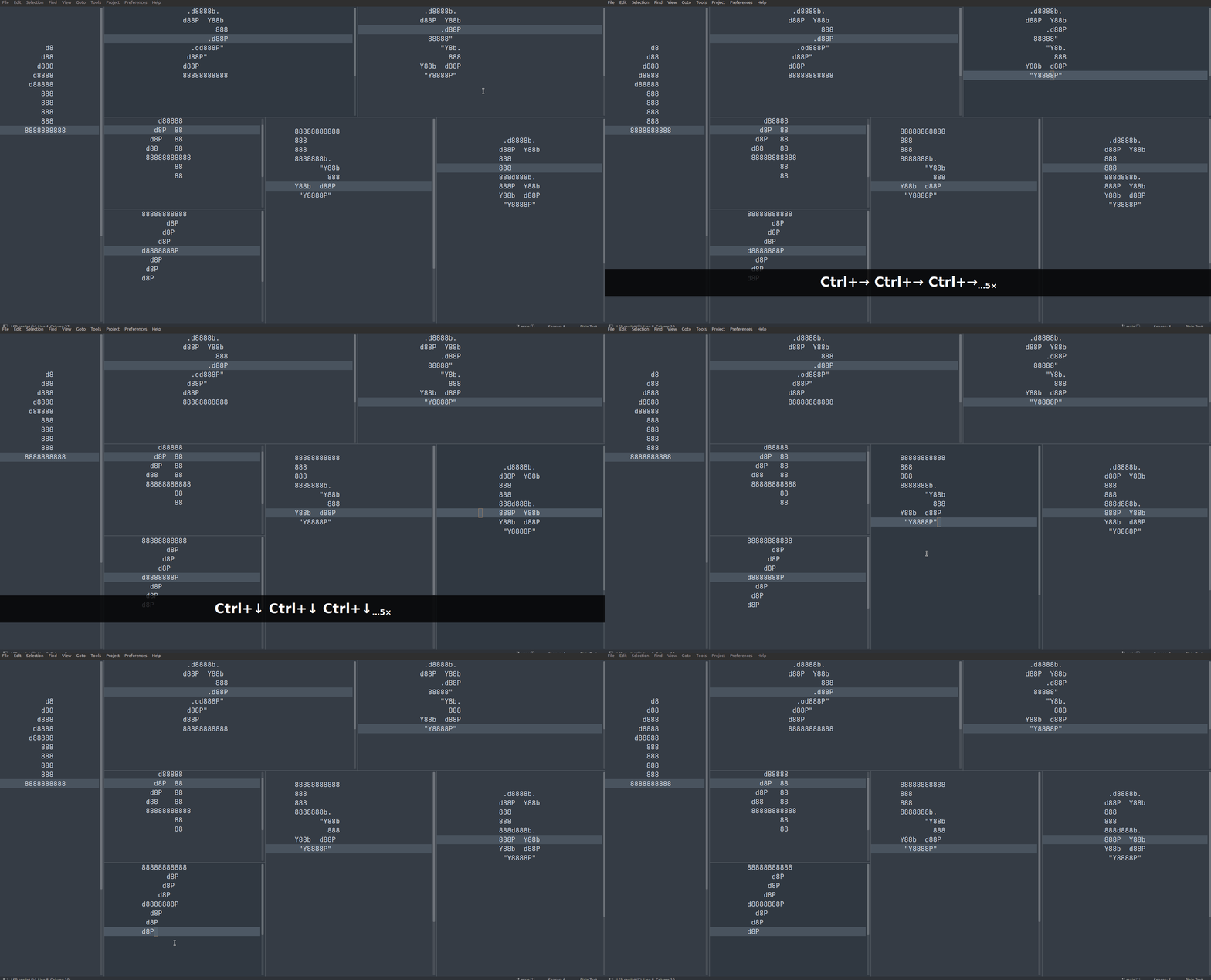
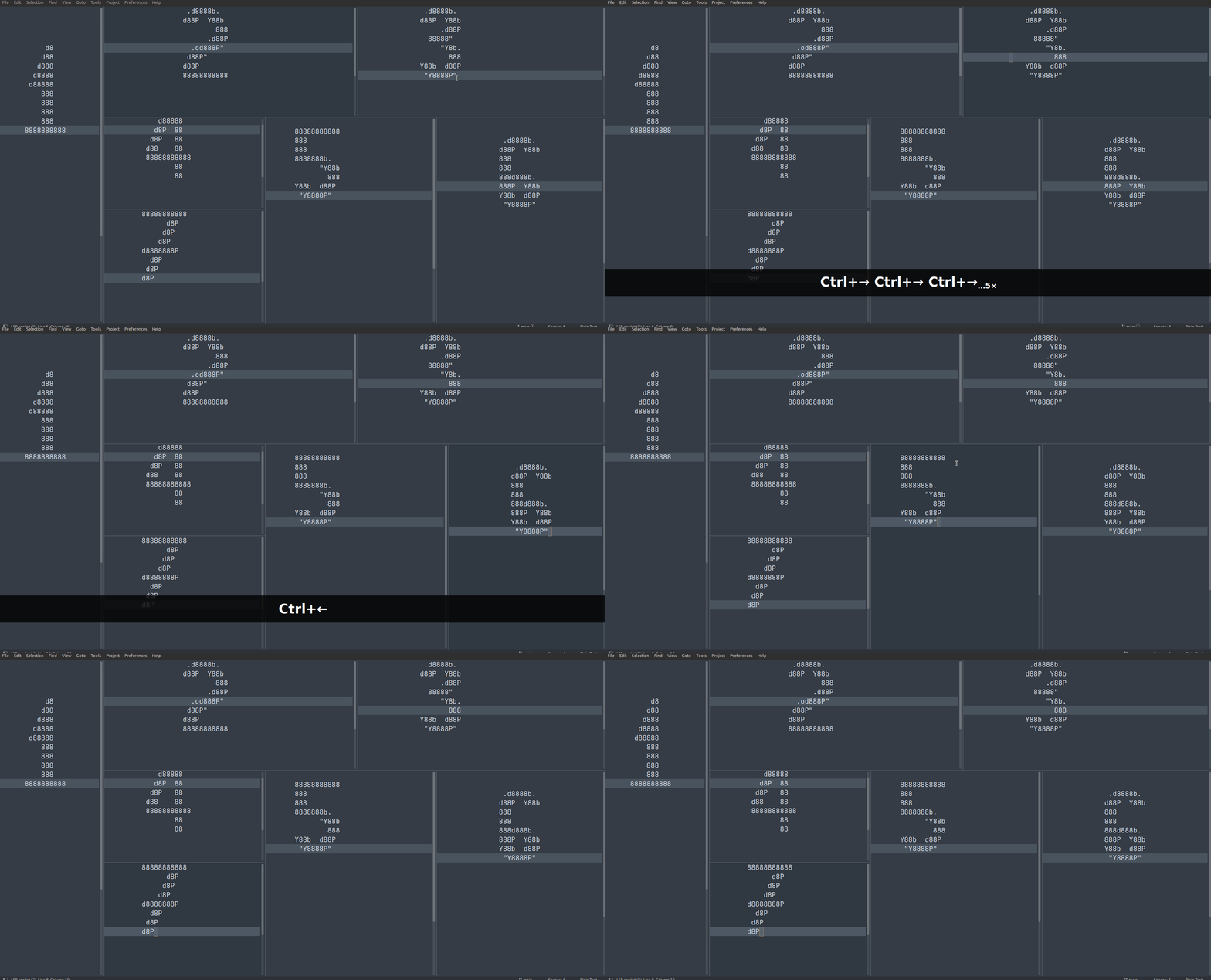
Panes 1, 2, and 4 are inner panes and behave identically in both modes. Panes 3, 5, 6, and 7 are the boundary panes where directional and growth mode behave differently.
- Pane 3 is a boundary pane for width only. Both modes resize the
same way vertically with
Alt+Up/Down. - Pane 6 is a boundary pane for both width and height. Both modes operate differently here.
- Panes 5 and 7 are boundary for height only. Regarding width they are inner panes, so both modes resize the same way horizontally.
The following gives a comparison of only the movements that differ between the two modes at boundary panes 3, 5, 6, and 7.
| Directional Mode | Growth Mode |
 |
 |
| Resizing boundary panes 3, 5, 6, and 7 | Resizing boundary panes 3, 5, 6, and 7 |
Installation
Package Control
Open the command palette (Ctrl+Shift+P), select
Package Control: Install Package, and search for Pain.
Manual
Clone or symlink the Pain/ directory into your Sublime Text
Packages/ folder:
# Linux
~/.config/sublime-text/Packages/Pain/

# macOS
~/Library/Application Support/Sublime Text/Packages/Pain/

# Windows
%APPDATA%\Sublime Text\Packages\Pain\
Key Bindings
Pain does not ship default key bindings to avoid conflicts with
other packages. Add the bindings you prefer to your user keymap
(Preferences > Key Bindings).
Suggested Bindings (Linux / Windows)
[
    // Directional: move separator left / Growth: decrease width
    { "keys": ["alt+left"],   "command": "pain_resize", "args": { "dimension": "width",  "resize": "decrease" } },
    // Directional: move separator right / Growth: increase width
    { "keys": ["alt+right"],  "command": "pain_resize", "args": { "dimension": "width",  "resize": "increase" } },
    // Directional: move separator up / Growth: decrease height
    { "keys": ["alt+up"],     "command": "pain_resize", "args": { "dimension": "height", "resize": "decrease" } },
    // Directional: move separator down / Growth: increase height
    { "keys": ["alt+down"],   "command": "pain_resize", "args": { "dimension": "height", "resize": "increase" } },
    // Equalize all panes
    { "keys": ["alt+="],      "command": "pain_resize", "args": { "dimension": "all",    "resize": "equal" } }
]
Suggested Bindings (macOS)
[
    // Directional: move separator left / Growth: decrease width
    { "keys": ["super+ctrl+left"],  "command": "pain_resize", "args": { "dimension": "width",  "resize": "decrease" } },
    // Directional: move separator right / Growth: increase width
    { "keys": ["super+ctrl+right"], "command": "pain_resize", "args": { "dimension": "width",  "resize": "increase" } },
    // Directional: move separator up / Growth: decrease height
    { "keys": ["super+ctrl+up"],    "command": "pain_resize", "args": { "dimension": "height", "resize": "decrease" } },
    // Directional: move separator down / Growth: increase height
    { "keys": ["super+ctrl+down"],  "command": "pain_resize", "args": { "dimension": "height", "resize": "increase" } },
    // Equalize all panes
    { "keys": ["super+ctrl+="],     "command": "pain_resize", "args": { "dimension": "all",    "resize": "equal" } }
]
Commands
Resize commands are designed for repeated, rapid keypresses and are
only available through key bindings (see above). The following
commands are available from the command palette (Ctrl+Shift+P):
| Palette Caption | Description |
|---|---|
| Pain: Toggle Resize Mode | Switch between directional and growth mode. |
| Pain: Toggle Greedy Pane | Toggle cascade resizing for adjacent panes. |
| Preferences: Pain Settings | Open default and user settings side by side. |
Settings
Open settings via Preferences > Package Settings > Pain > Settings.
| Setting | Type | Default | Description |
|---|---|---|---|
resize_mode |
string | "directional" |
Resize model. |
greedy_pane |
bool | false |
Cascade pushes. |
resize_amount |
int | 3 |
Step percent. |
minimum_pane_size |
int | 10 |
Min pane percent. |
Package Landscape
Pain is a dedicated pane-resizing plugin. The Sublime Text ecosystem has several pane-related packages.
Origami
Origami (146K installs) is the standard pane management plugin, maintained under the official Sublime Text organization. It handles the full pane lifecycle: creating / destroying / navigating / carrying / cloning files between panes.
Origami and Pain are complementary:
- Origami excels at pane creation and navigation (
Ctrl+Kthen arrow keys to create/destroy/travel between panes). - Pain excels at pane resizing with simple, repeatable hotkeys.
Origami does include resize-related features (zoom and separator editing), but they serve a different use case:
- Zoom sets the active pane to a fixed fraction (e.g. 90%) in a single action. This is useful for temporarily maximizing focus, not for fine-grained incremental adjustment.
- Separator editing opens an input panel where you type exact
separator positions as decimal values (e.g.
0.3, 0.7). This is precise but not suitable for rapid keyboard-driven resizing.
Pain also offers two resize modes (directional and growth) that have no equivalent in Origami. See Resize Modes.
Retired packages
To the best of my knowledge, the following packages that provide pane resizing functionality are unfortunately no longer maintained and/or outdated, or have a different purpose:
| Package | Last Updated | ST | Mode | Notes |
|---|---|---|---|---|
| PanePane | 2017 | ST3 | growth | Explicitly abandoned. Pain is its spiritual successor. |
| Resize Group with Keyboard | 2018 | ST2/ST3 | growth | Arrow-key resize with configurable delta. |
| GoldenRatio | 2015 | ST2/ST3 | – | Auto-resize to golden ratio on focus. |
| Layout | 2016 | ST3 | directional | tmux-style pane management with Alt+HJKL resize. |
| Expand Group | 2014 | ST3 | – | Focus-switch with automatic ratio resize. |
| MaxPane | 2020 | ST2/ST3/ST4 | – | Toggle maximize/restore a single pane. |
| Pane Resizer | 2014 | ST2/ST3 | – | Symmetric expand/contract active pane. |
| Laynger | 2014 | ST2/ST3 | directional | Two-column border nudging. |
| SplitScreen-Resizer | 2012 | ST2 | – | Two-column focus-switch with ratio resize. |
| Resize Active Group | 2012 | ST2 | – | Auto-resize active group on focus. |
| Wiggle | 2013 | ST2 | directional | Push/pull pane borders. |
Mode legend:
- directional: moves a specific border in a direction
- growth: grows or shrinks the active pane
- –: other approach (zoom, ratio snap, auto-resize on focus, etc.)
Pain is the only ST4-native plugin that offers both directional and growth modes.
Issues
Found a bug or have a feature request? Please open an issue on GitHub: